Work with agents using marimo pair
Use marimo pair to connect coding agents like Claude Code, Codex, and OpenCode to running marimo notebooks. Once your agent is paired with marimo, ask it to explore data, explain results, or modify cells. The agent can inspect variables and try code in a scratchpad before it commits changes to the notebook. You can inspect the results and edit the same notebook yourself, letting you pair program with the agent.
Installation
The marimo pair skill teaches your agent how to connect to running notebooks. Choose the installation method for your agent.
Run these commands in your terminal:
To update the plugin, run:
Run these commands in your terminal:
To update the marketplace, run:
For Cursor, VS Code, Gemini CLI, OpenCode, Copilot CLI, or another agent that supports Agent Skills, run:
To update the skill, run:
If you use uv instead of npx, install the skill with:
Start pairing
Ask your agent to start a notebook
With the skill installed, ask your agent to start a notebook:
The agent starts marimo and connects to the notebook.
Connect to a running notebook
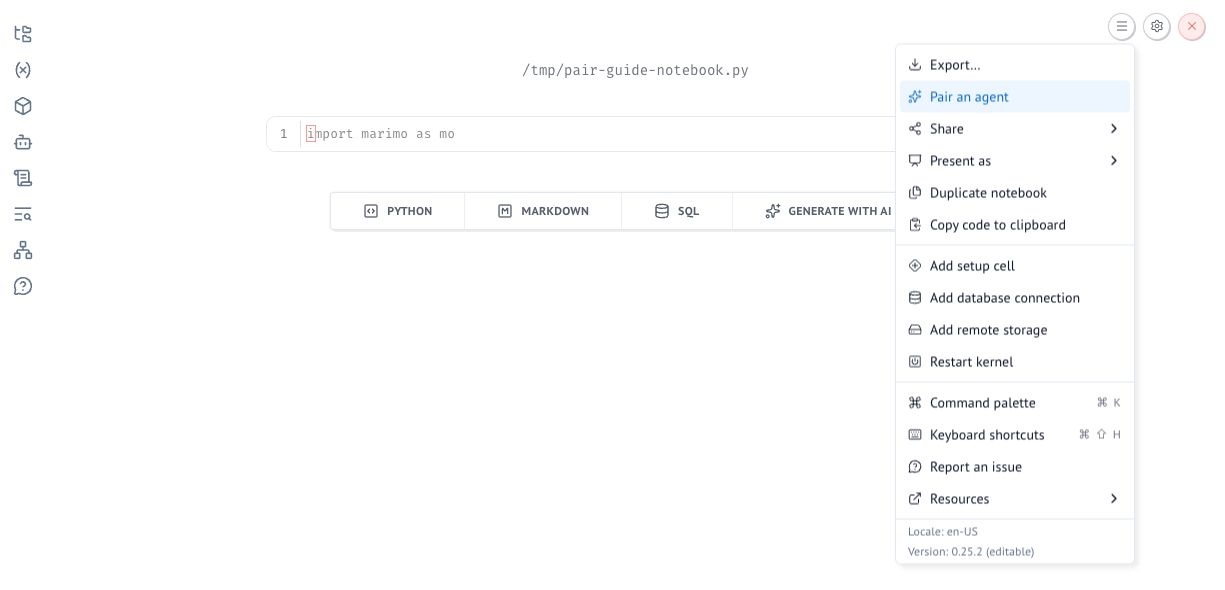
- Open the notebook's Actions menu and select Pair an agent.
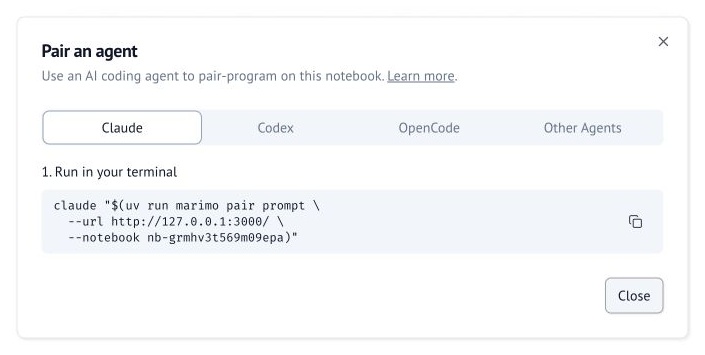
- In the Pair an agent dialog, select your agent.
- Click Copy command, then paste and run the command in your terminal.
Pair with notebooks on molab
You can also pair your local agent with notebooks on molab. Just follow these same steps.
Watch the connection steps for your agent:
Ask your agent to explore data, explain results, or modify cells. The agent can inspect variables and try code in a scratchpad before it changes the notebook. You can inspect the results and edit the same notebook yourself. Your work stays in a notebook that you can run again, modify, and share.